Overview
The operations involve inputting or automatically retrieving prices from the rates of Lines/Airlines/subcontractors.
1. Access the App
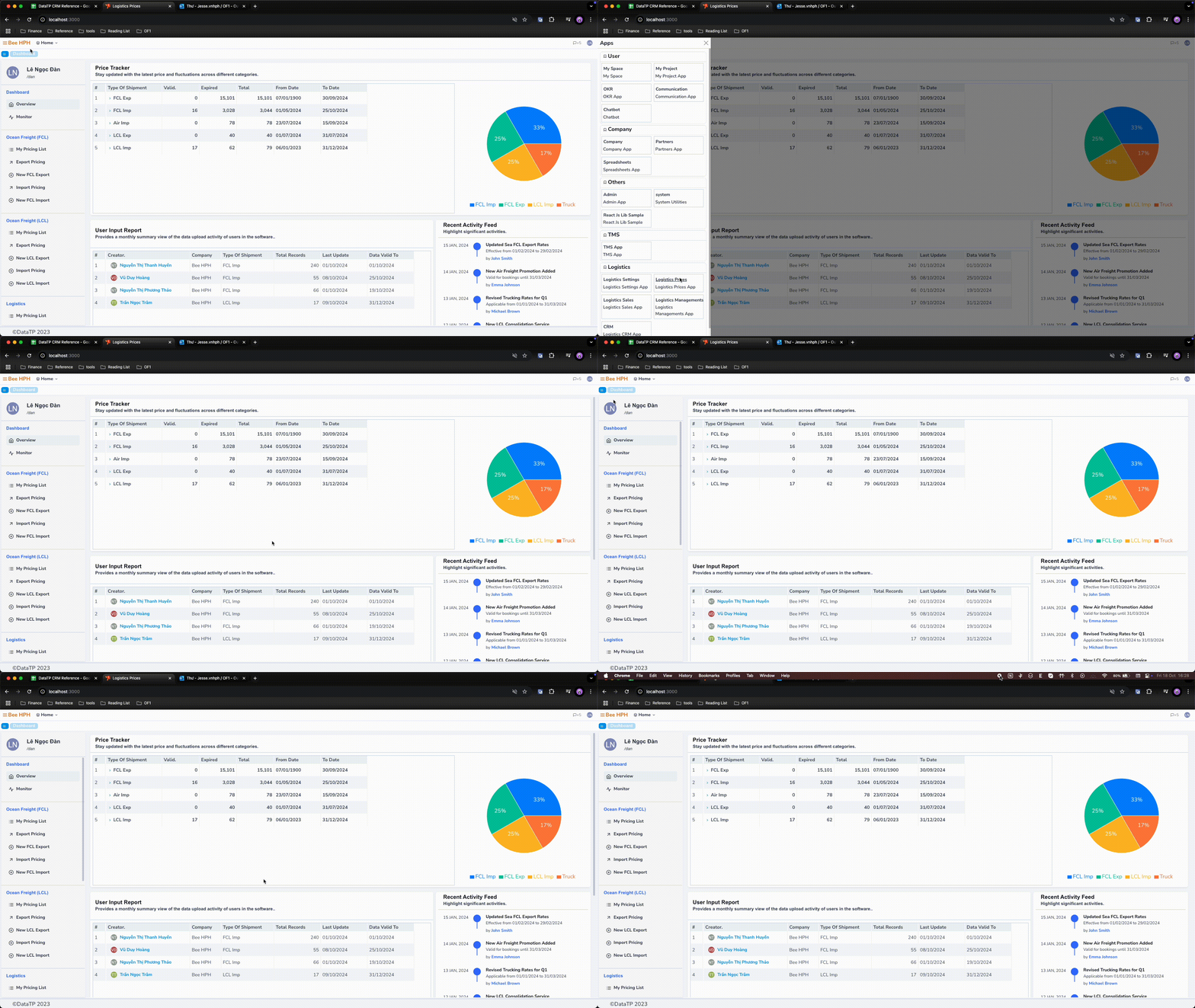
On the software screen, click the company logo in the top right corner to access the module list. Click on Logistics Prices.
2. Dashboard Screen
By default, the software opens to the Overview screen.
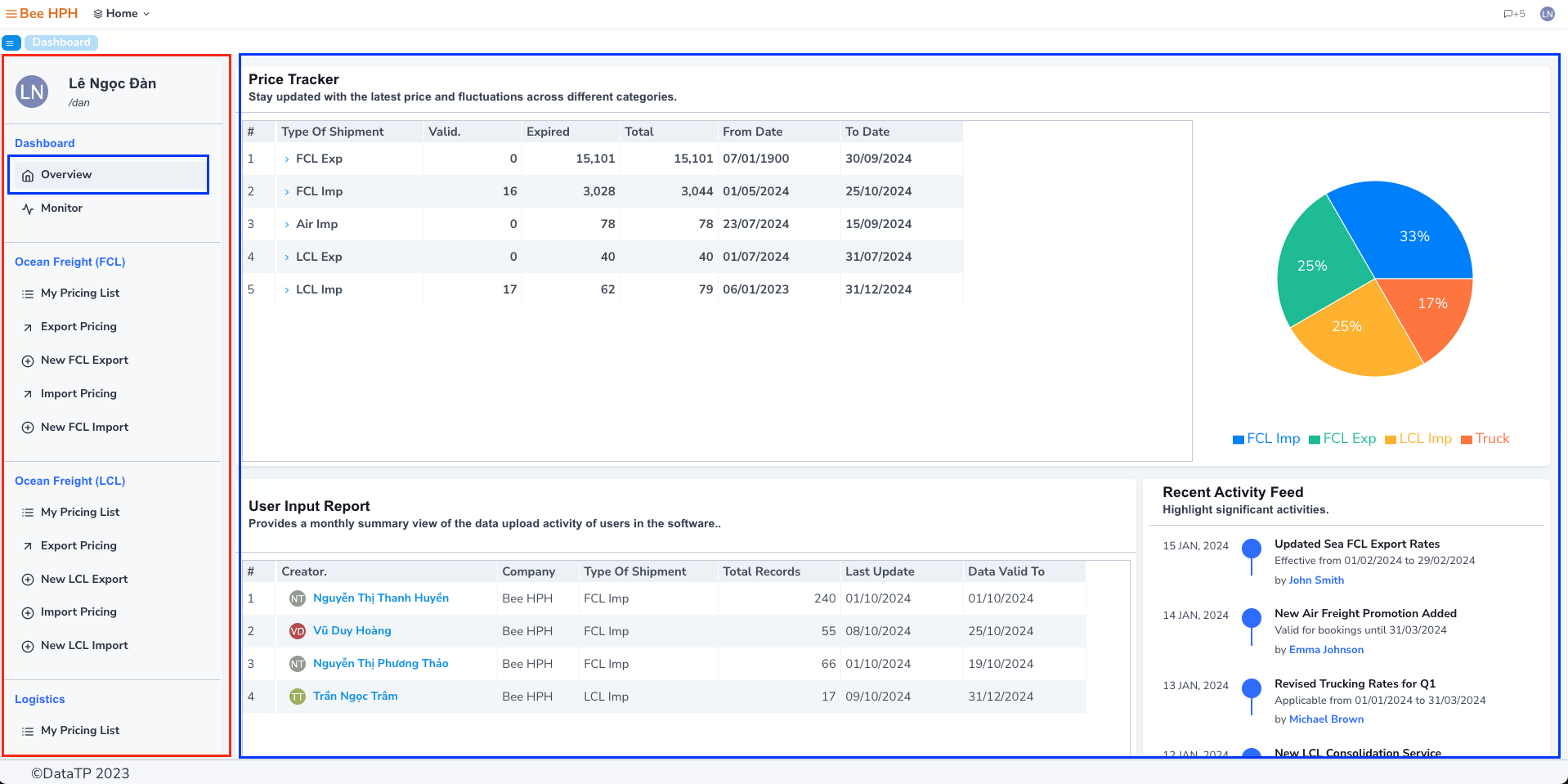
On the right is the navigation bar, allowing you to switch between different functional screens within the app.
- Monitor is the monitoring screen, including information such as permissions, bandwidth usage, user access names, etc.
- The Ocean Freight (FCL) section includes:
- My Pricing List: manages user input prices.
- Export Pricing: list of FCL Export prices in the system.
- New FCL Export: input screen for FCL Export data.
- Import Pricing: list of FCL Import prices in the system.
- New FCL Import: input screen for FCL Import data.
- Similar for other sections...
3. My Pricing List - Manage Prices You Input
- In the navigation bar, click My Pricing List (Logistics) → select container or truck prices.
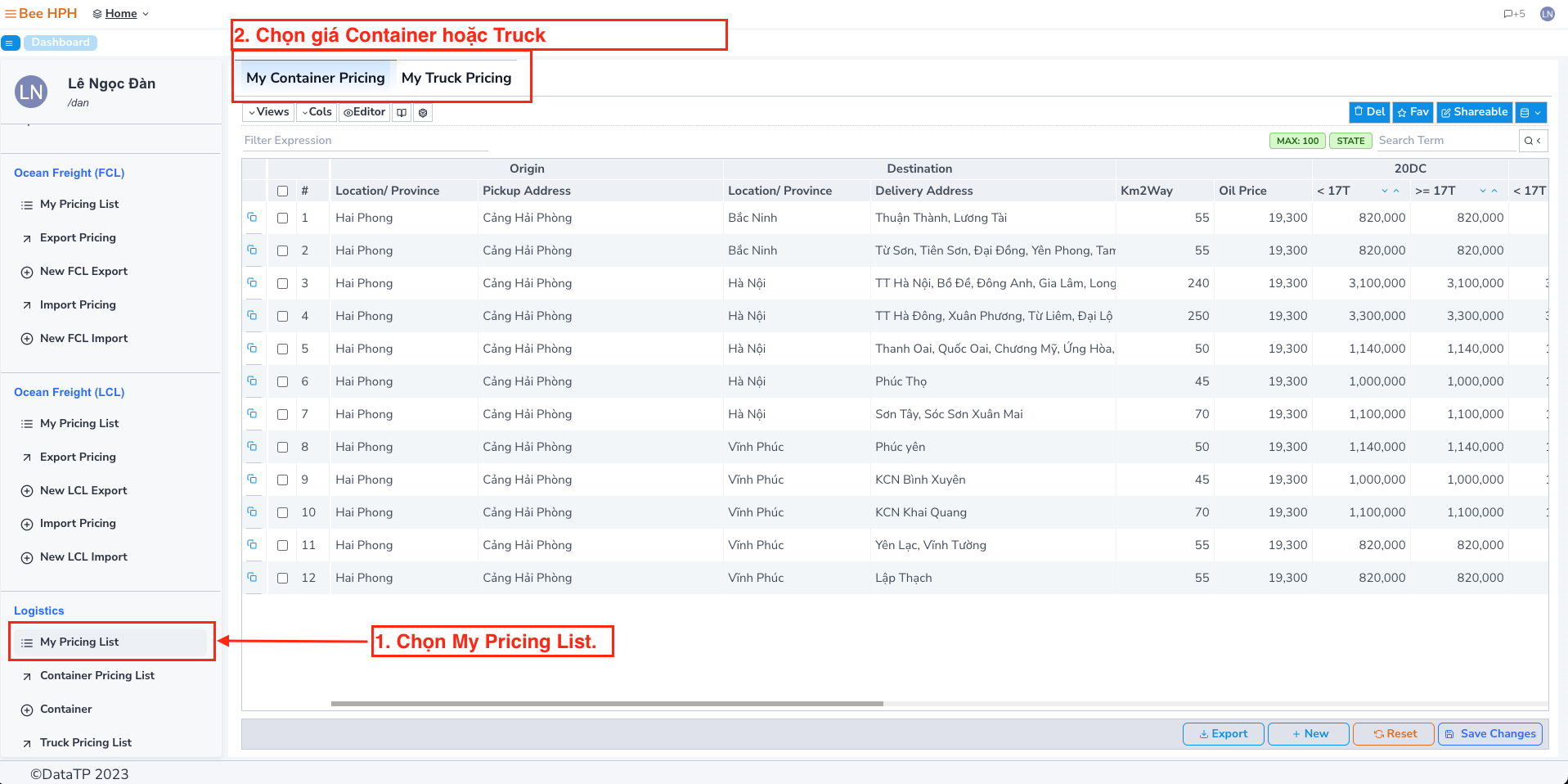
- Functions:
a. Copy data (copy by row or multiple rows), as shown in the image below.
b. Function to delete data, edit data on the table.
c. Function to export data in Excel format.
4. Price List Screen
The price list screen for each type is highlighted as shown below:
Demo:
5. Enter Data, Upload FCL/LCL, Air Price List
- In the navigation bar, click New FCL Export - Ocean Freight (FCL).
- The screen consists of two parts: General Information Form and Data Table:
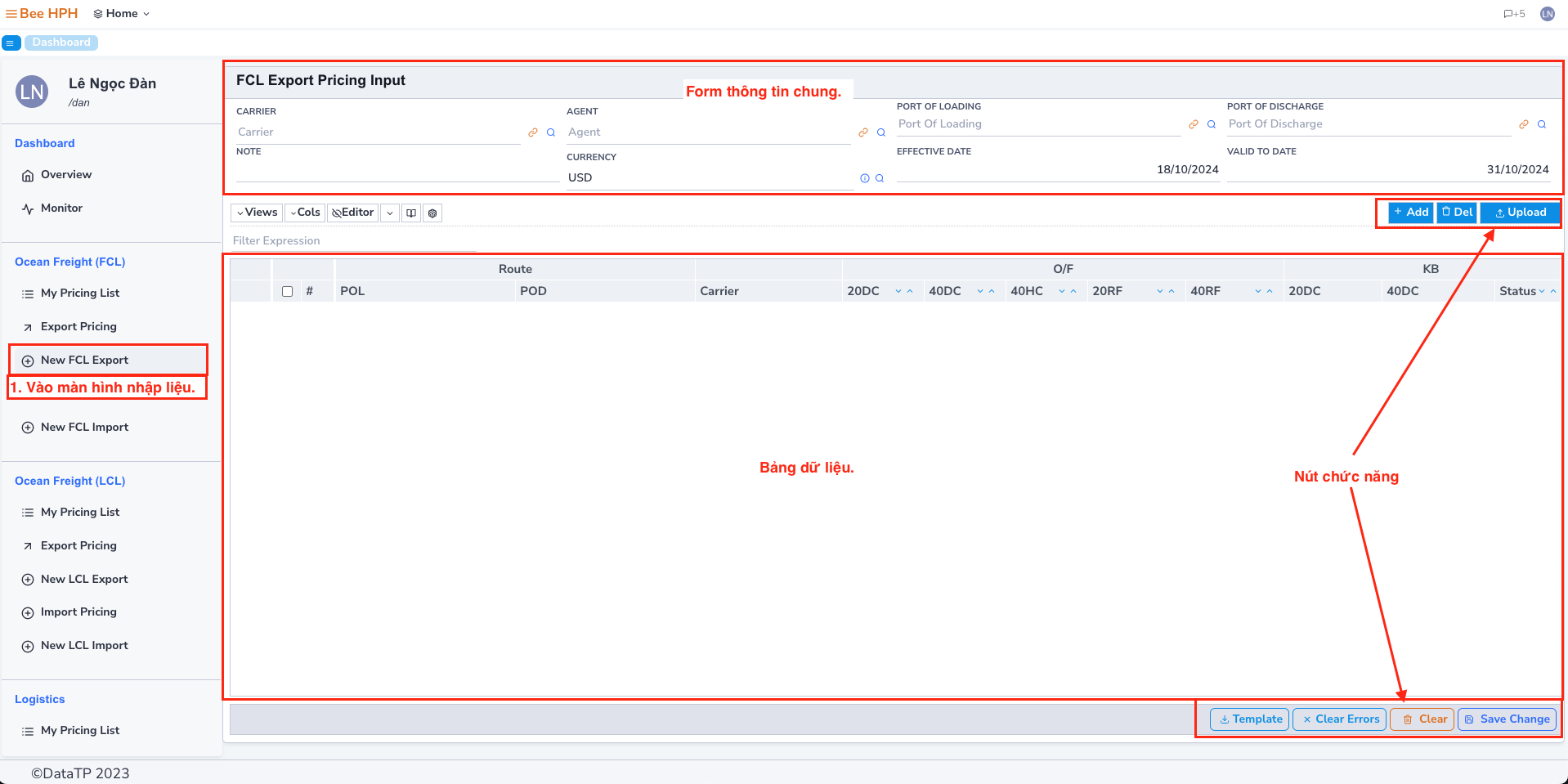
General Information Form:
- This is general information applicable to all price data below.
- Required fields include: Currency, Effective Date, and Valid To Date.
- Other information such as Carrier, Agent, Port Of Loading, Port Of Discharge, etc., is optional.
Data Table: price information screen entered from the interface (Add) or from an Excel file (Upload).
Function Buttons:
- Add: Add a new row to the price table.
- Del: Delete the selected row by ticking the corresponding box.
- Upload: Load, input data from an Excel file.
- Template: Download the Excel template file used to upload data.
- Clear: Delete all data displayed on the price table screen (only deletes displayed data, does not lose uploaded data).
- Save Change: Save all changes on the data entry screen.
Priority Process is if data is available from an uploaded Excel file, it will take data from the Excel file first; if there is no data in Excel, it will take from the general information form.
Note:
- Information displayed on this screen will not be saved until the user clicks the Save Change button.
Demo: https://youtu.be/1eOtZOrJniU
6. Enter Data, Upload Trucking Price List (Cont/Truck)
a. Truck
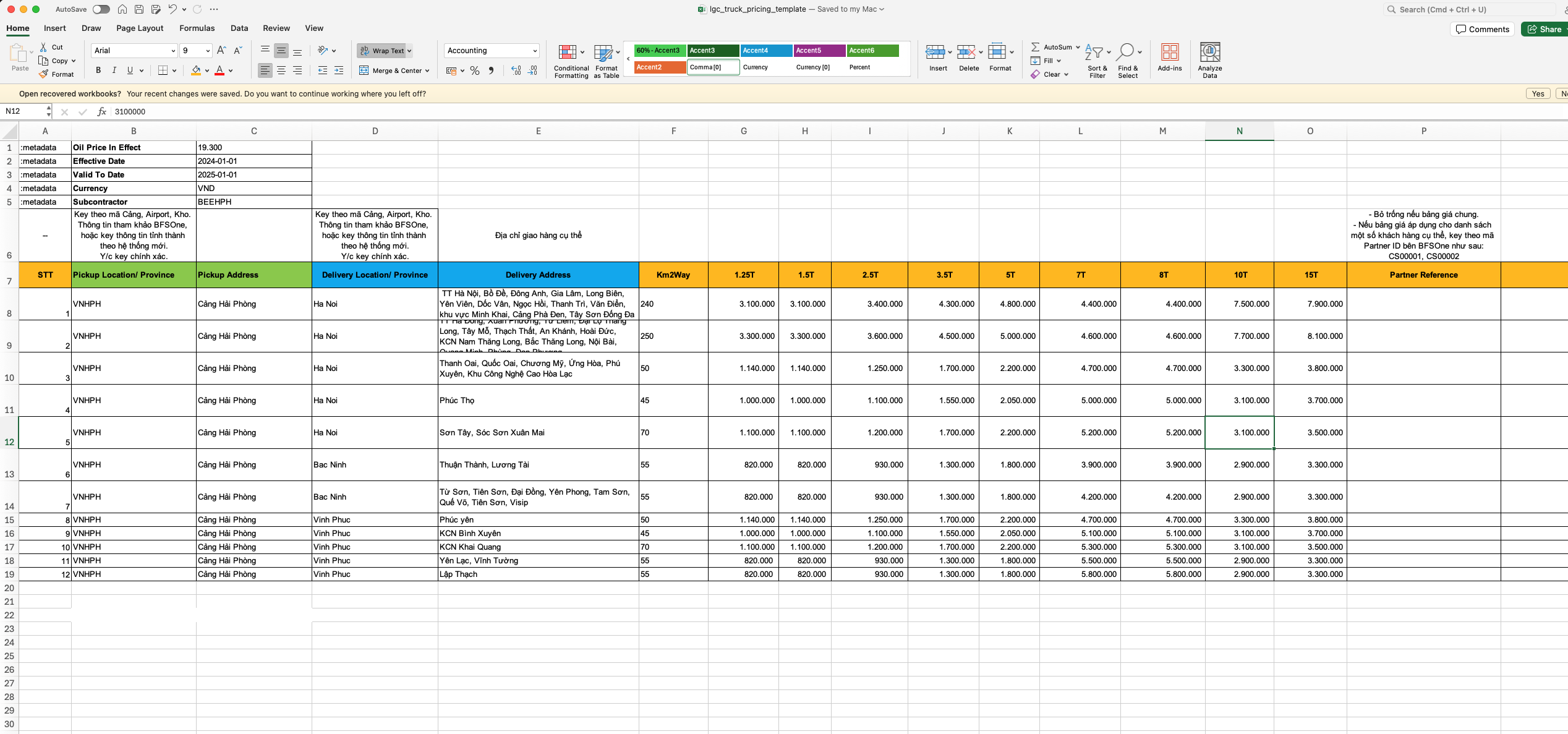
Prepare an Excel data file, which can be divided into multiple sheets for different subcontractors.
Download the sample file from the link: https://adminbeelogistics-my.sharepoint.com/❌/g/personal/jesse_vnhph_beelogistics_com/EWhZI38zTGBCvQDWIVCLyOQBwu66JktPkZdVM8Tl_jSgJA?e=dUGcqw
- After preparing the Excel file, on the dashboard screen, click the Truck button.
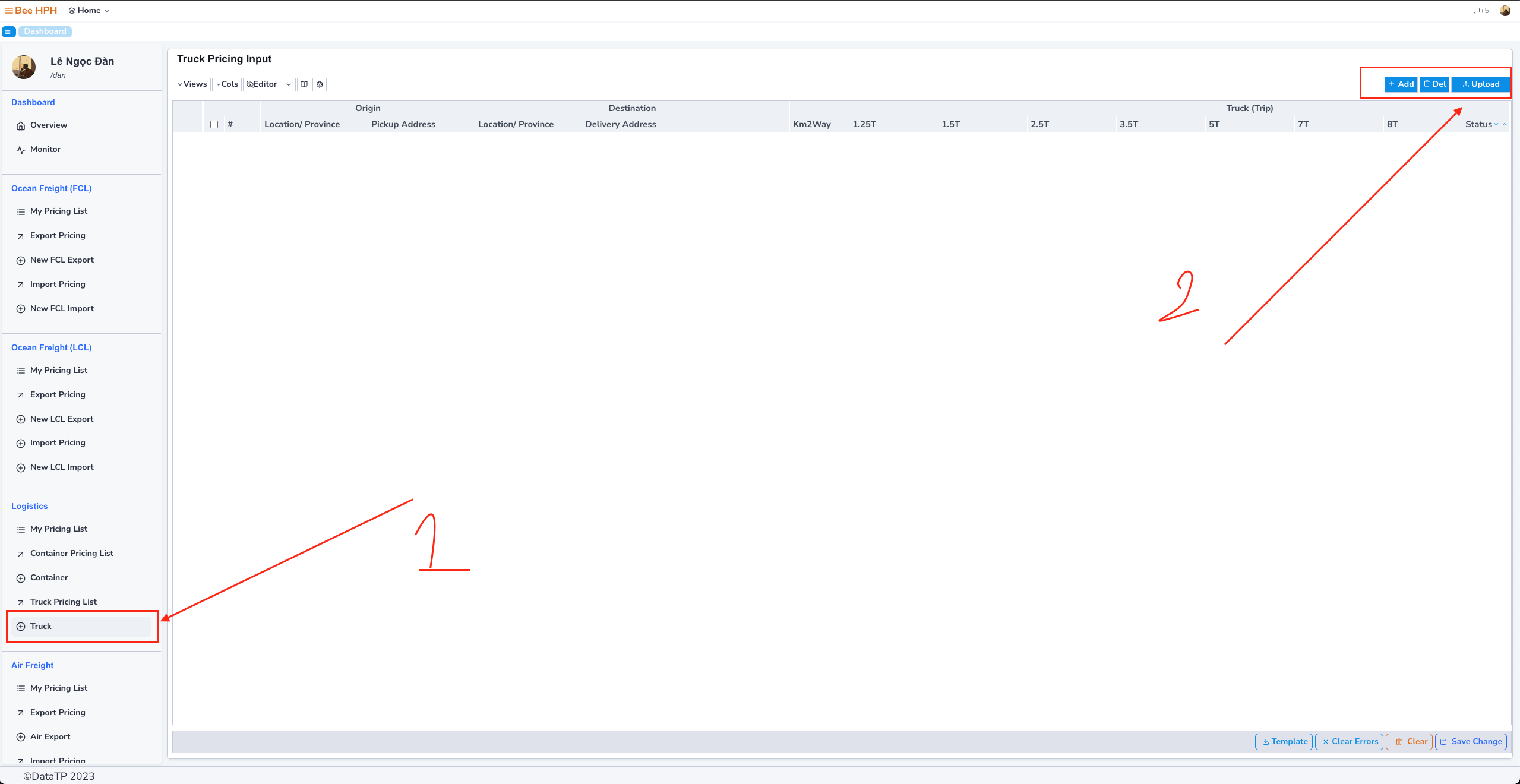
- Perform the choose file action and proceed to upload. https://youtu.be/oEc6o5bTyII
- The software notifies upload information, check the information on the screen below, and make adjustments if necessary. Click Save Changes to save the data*.***
Check the uploaded data again, in the sidebar select My Pricing List
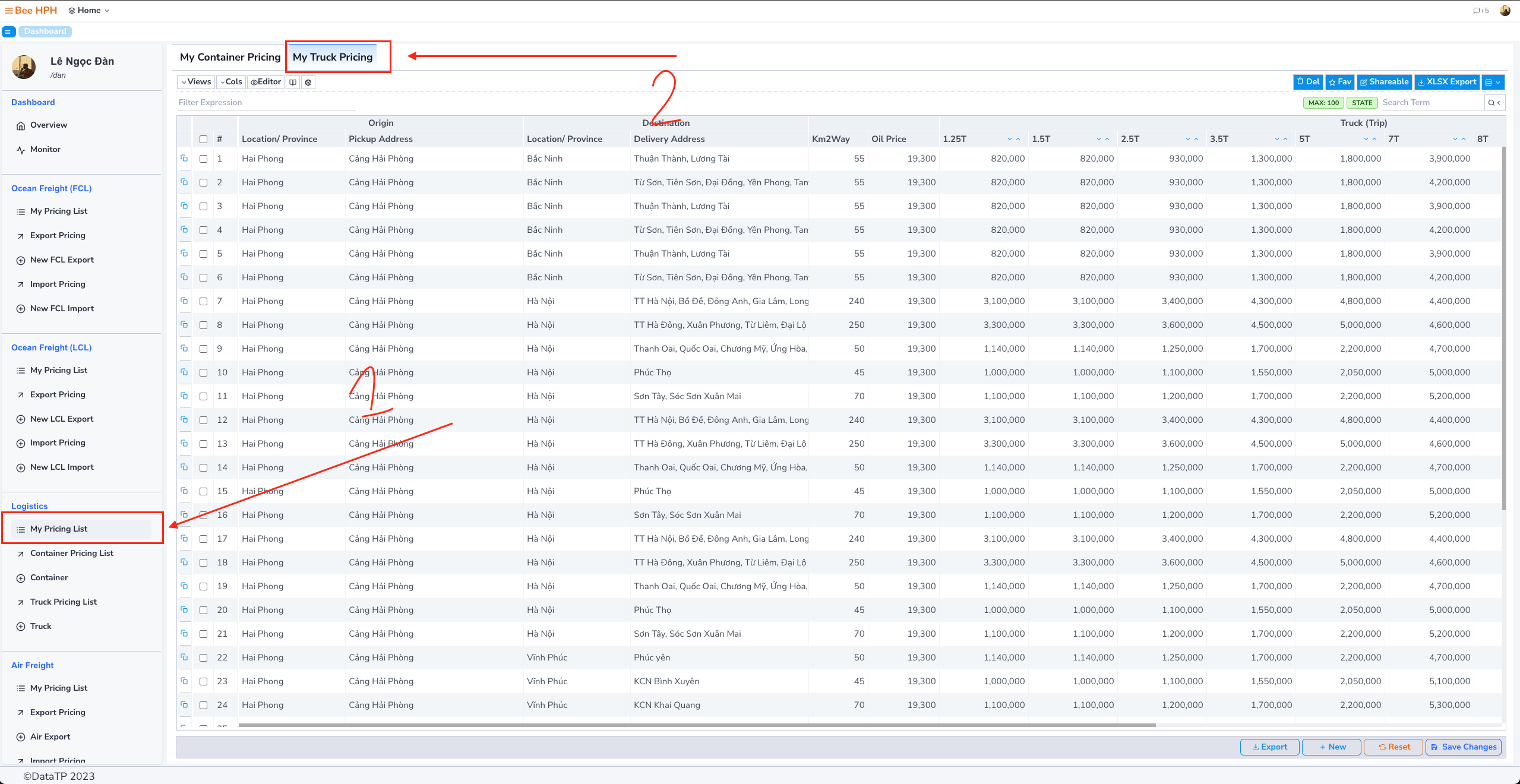
b. Container
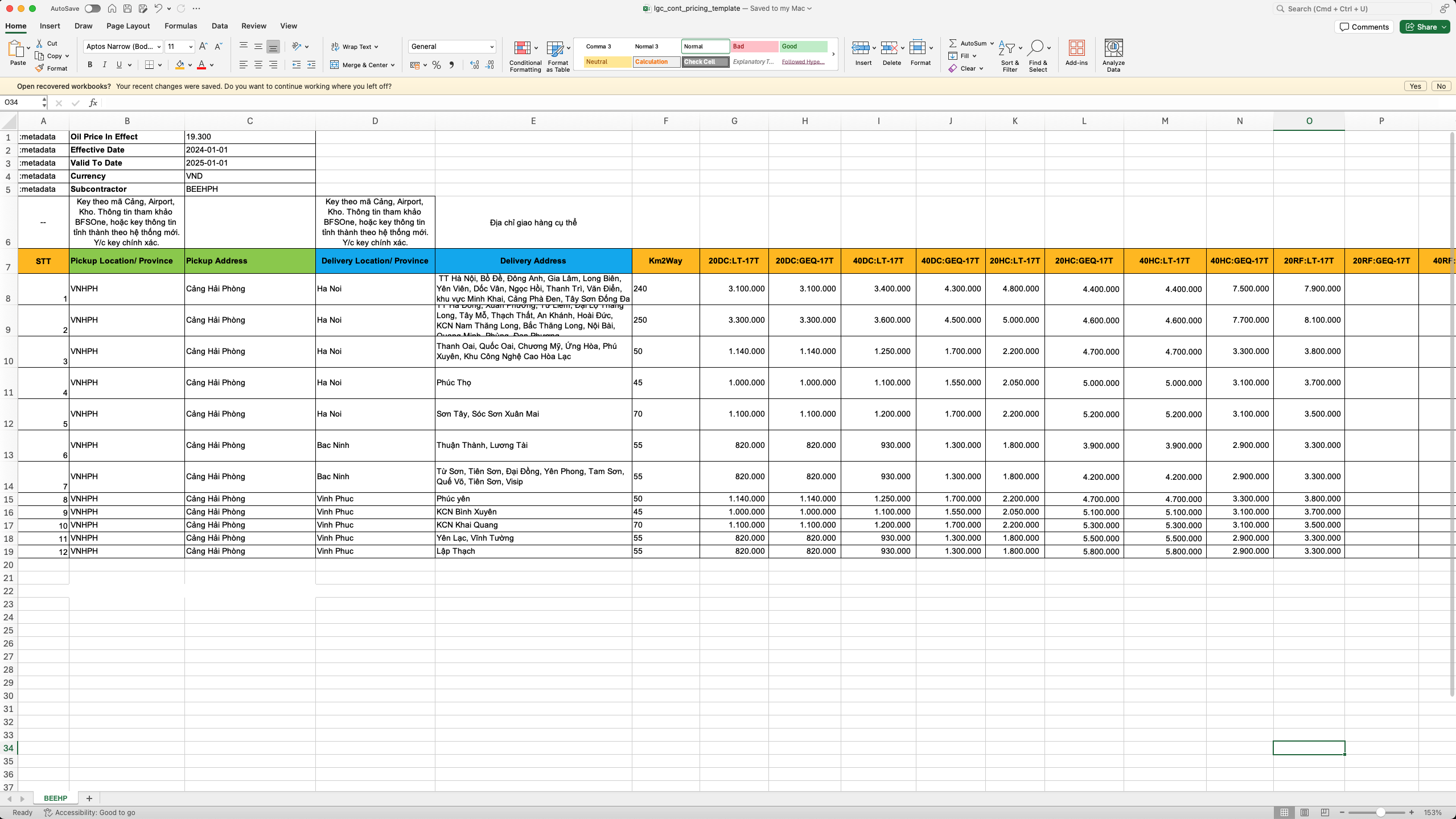
Prepare an Excel data file, which can be divided into multiple sheets for different subcontractors.
Download the sample file from the link: https://adminbeelogistics-my.sharepoint.com/❌/g/personal/jesse_vnhph_beelogistics_com/EWhZI38zTGBCvQDWIVCLyOQBwu66JktPkZdVM8Tl_jSgJA?e=dUGcqw
- After preparing the Excel file, on the dashboard screen, click the Container button.
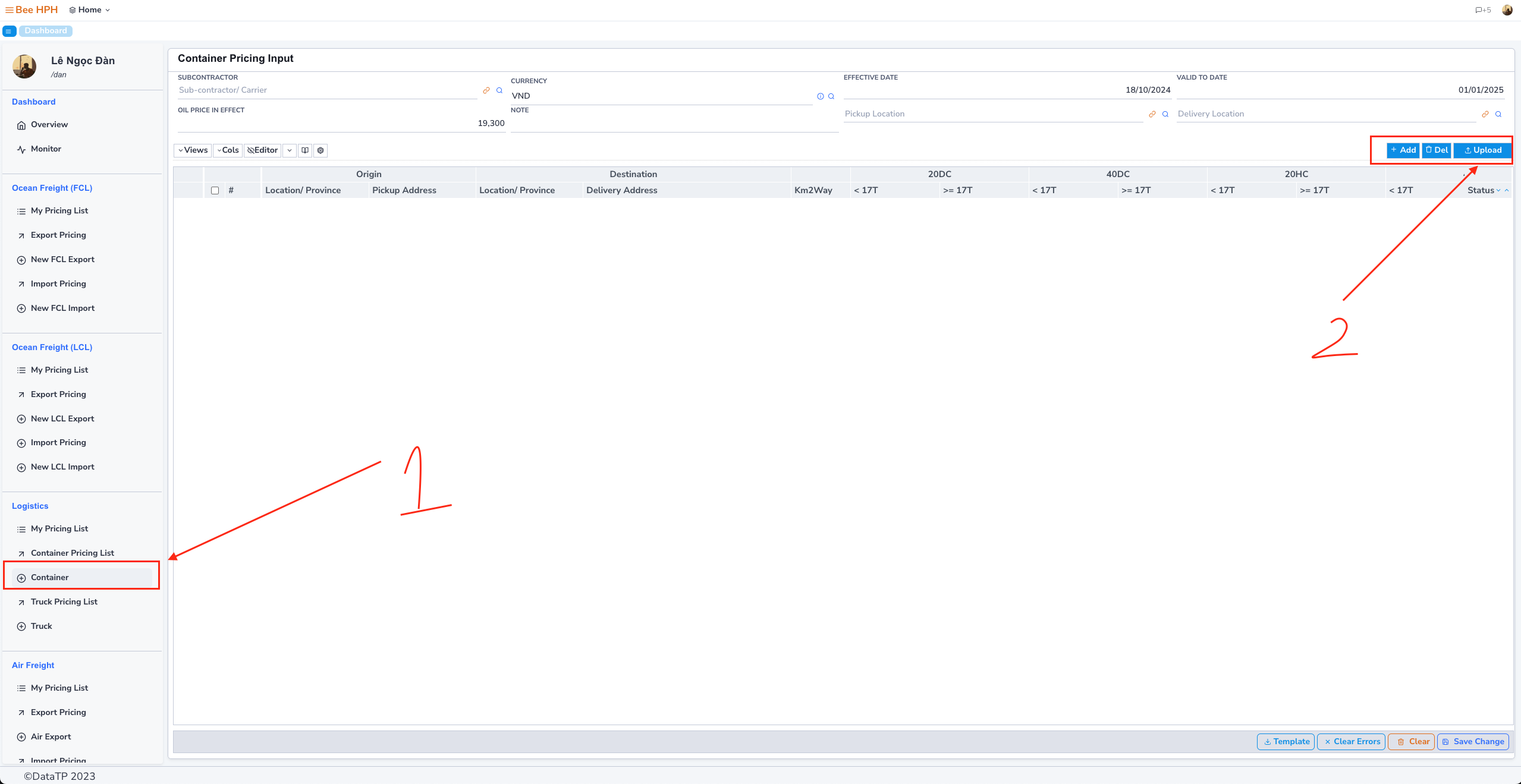
- Perform the choose file action and proceed to upload.
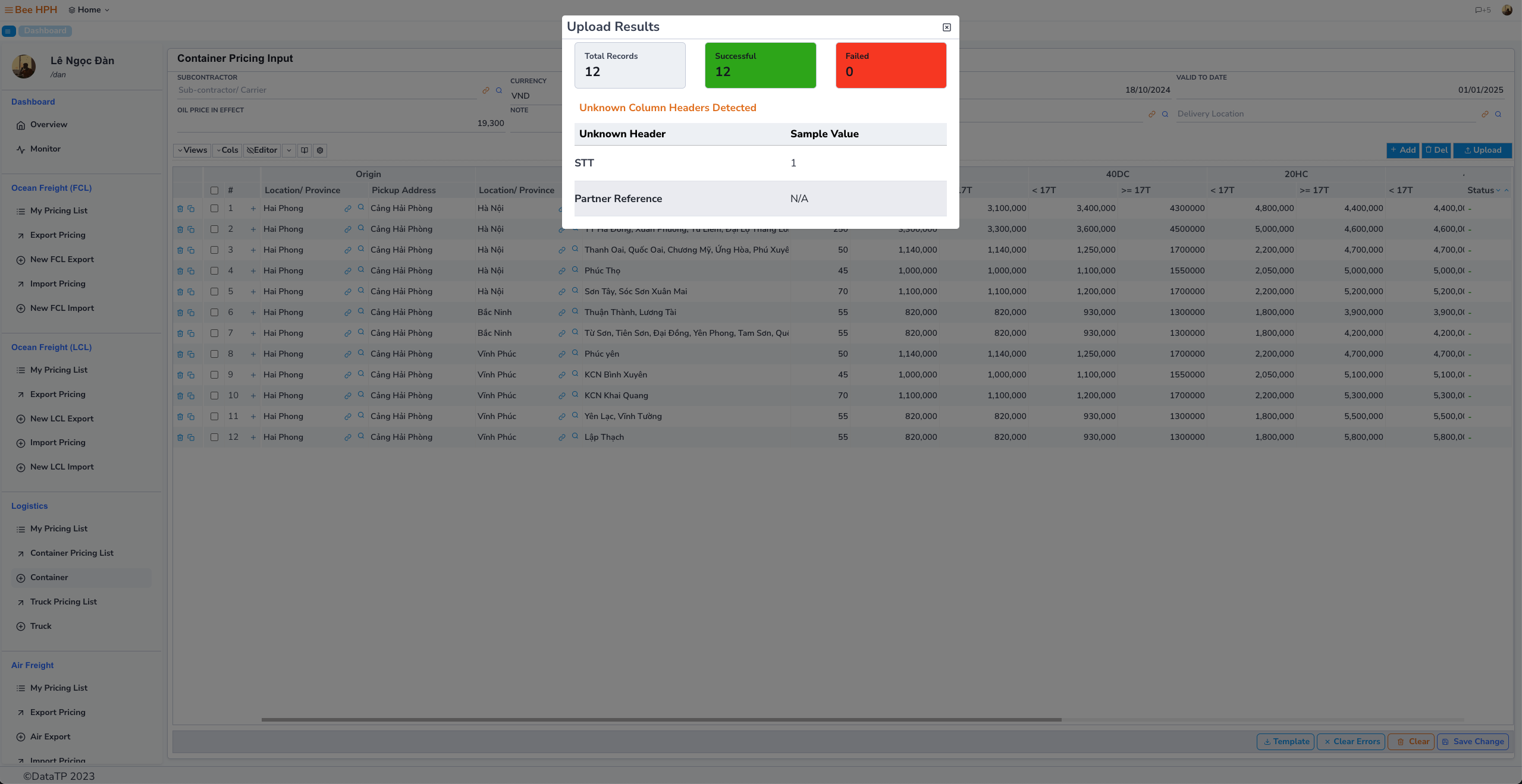
- The software notifies upload information, check the information on the screen below, and make adjustments if necessary. Click Save Changes to save the data*.***
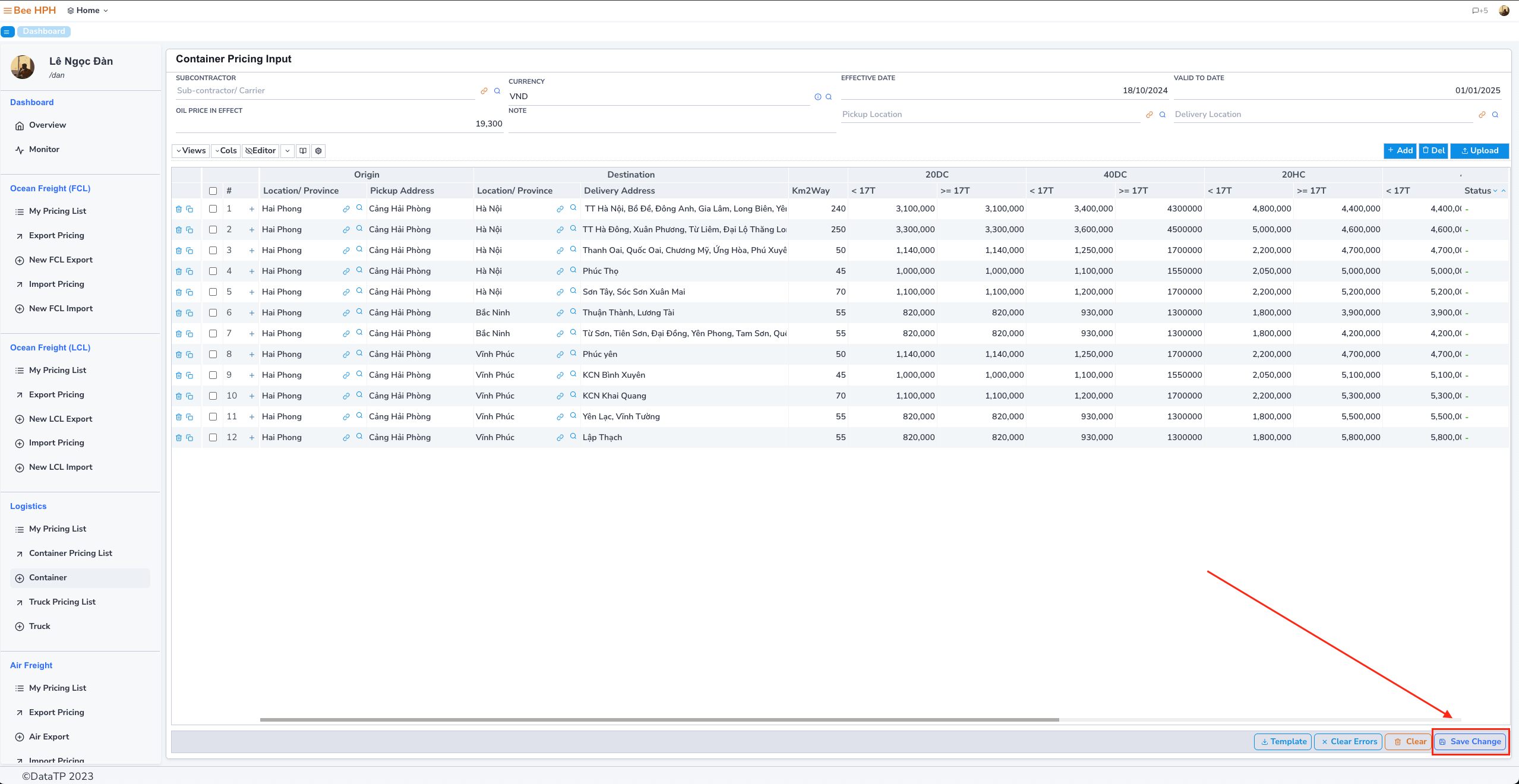
Check the uploaded data again, in the sidebar select My Pricing List → Select My Container Pricing.